Menu
  • En-Fr

Sections and blocks run your pages

Drupal core is based on a layout builder which offers you flexibility:

  • To customize your page in one or two layouts (feel free to mix different displays of section layouts in the same page)
  • To move your custom blocks thanks to the drag and drops tool
  • To give your imagination free reign: all the custom blocks can be used in a page. Meaning you can mix FAQ, contact item and pictures if you want!
     

Every time you want to create a basic page, a showcase page, a location or a creative post, you will have to play with sections and blocks. 
What is a section?

You can have as many sections as you want.

When you click on "Add section", you must:

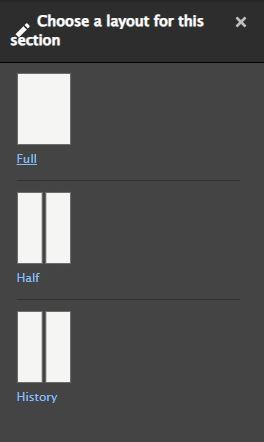
  1. Choose the layout of your section.
    For a basic page or a location page, you can choose one or two columns. 
    For a showcase page or a creative post, you can choose from one to three columns. 
     
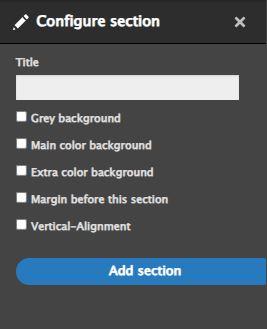
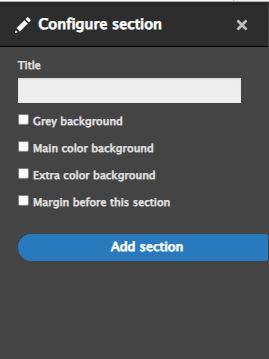
  2. After selecting a column:
  • Title: it will appear on your front page as a Heading 2. If you don't want your section to have a 
    title, just let the field blank.
  • If you want to distinguish one section from another, you can use different background colors: select "Grey background", "Main color background" or "Extra color background".
  • If you want to add a margin before a section, select "Margin before this section". 

Then you can click on "Add section".

When do I need to create a new section?

Each time you want to change the number or the background color of a column, add a new section.

For a basic page et for a location

Configure a section for Full Layout

Choose a layout : Full or Half

Configure a section for Half Layout

What is a block?

Each piece of content is a custom block.

If you want to discover all the custom blocks, go directly to the "Custom block library".

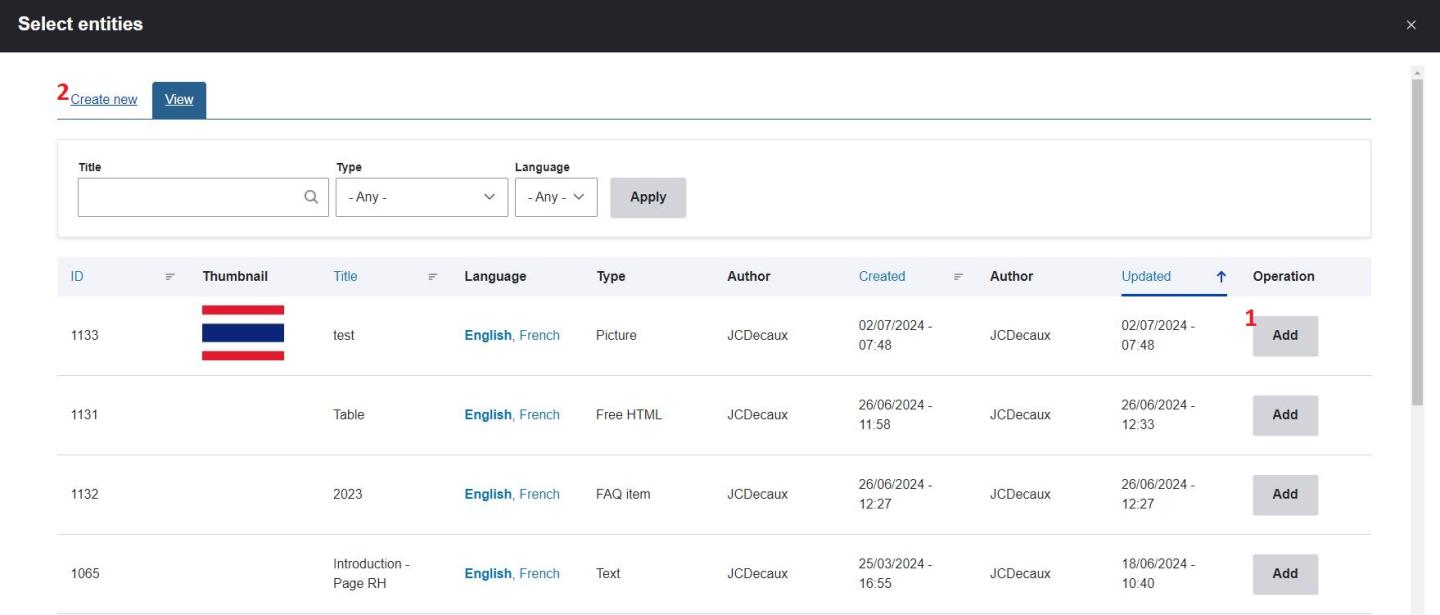
After creating your section, click on "Add block": 

  1. If you haven't created your custom block yet, click on "Create new". Select which kind of item you want to create (pictures, text, call-to-action, etc...) then complete it and save.
  2. If you already have created your custom block, select it and add it.
     

You can add more than one custom block in your section. 

Feel free to ask us if you need more information!

test
Ky-lang Sun Web Project Manager
Margaux Pausé Web Communication Manager