Menu
  • En-Fr

Introduction to a webform

A webform is a great way for people to contact us, subscribe to Newsletter, or send CVs to apply for job applications.

Creating a webform

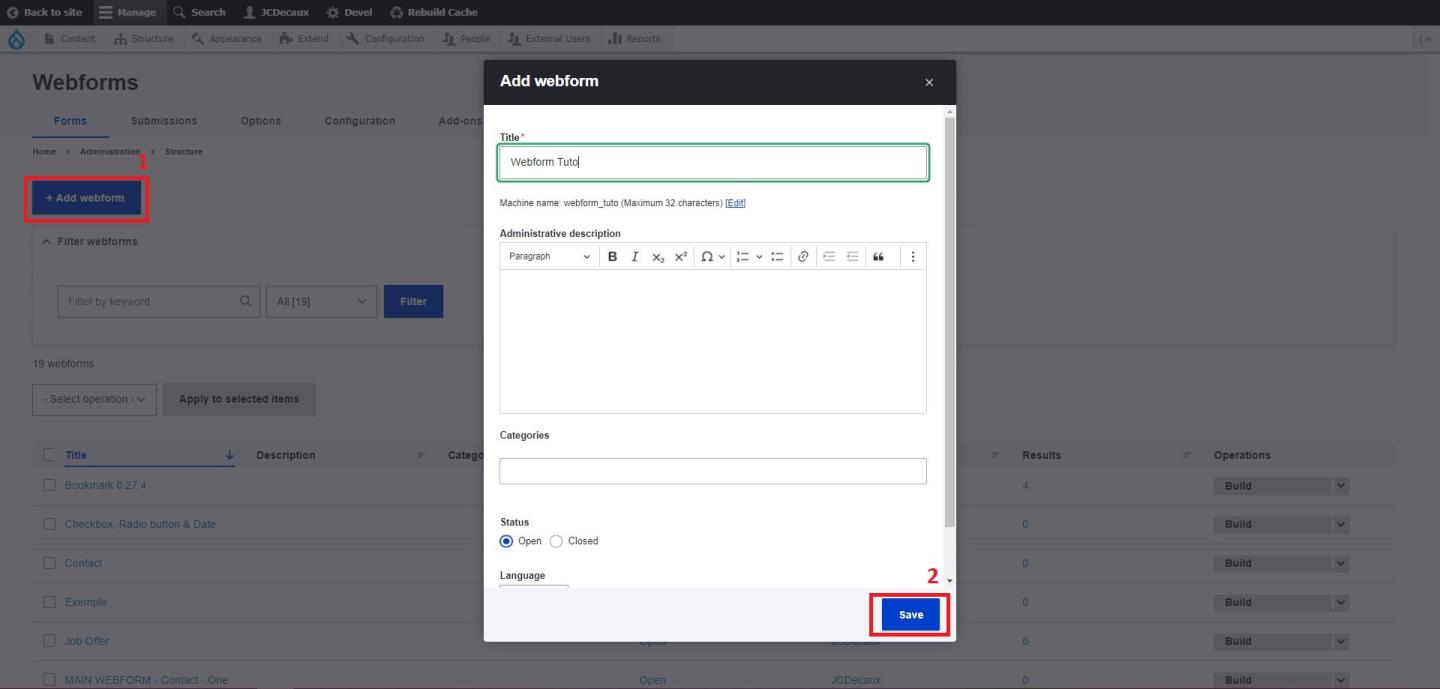
To create a webform, go to:

  • Structure > Webforms > Add webform

> From here you can give the webform a name, and add a category to classify & find your webforms more easily in the Back Office.
Setting up a webform

You can "Add elements" to fill up the webforms
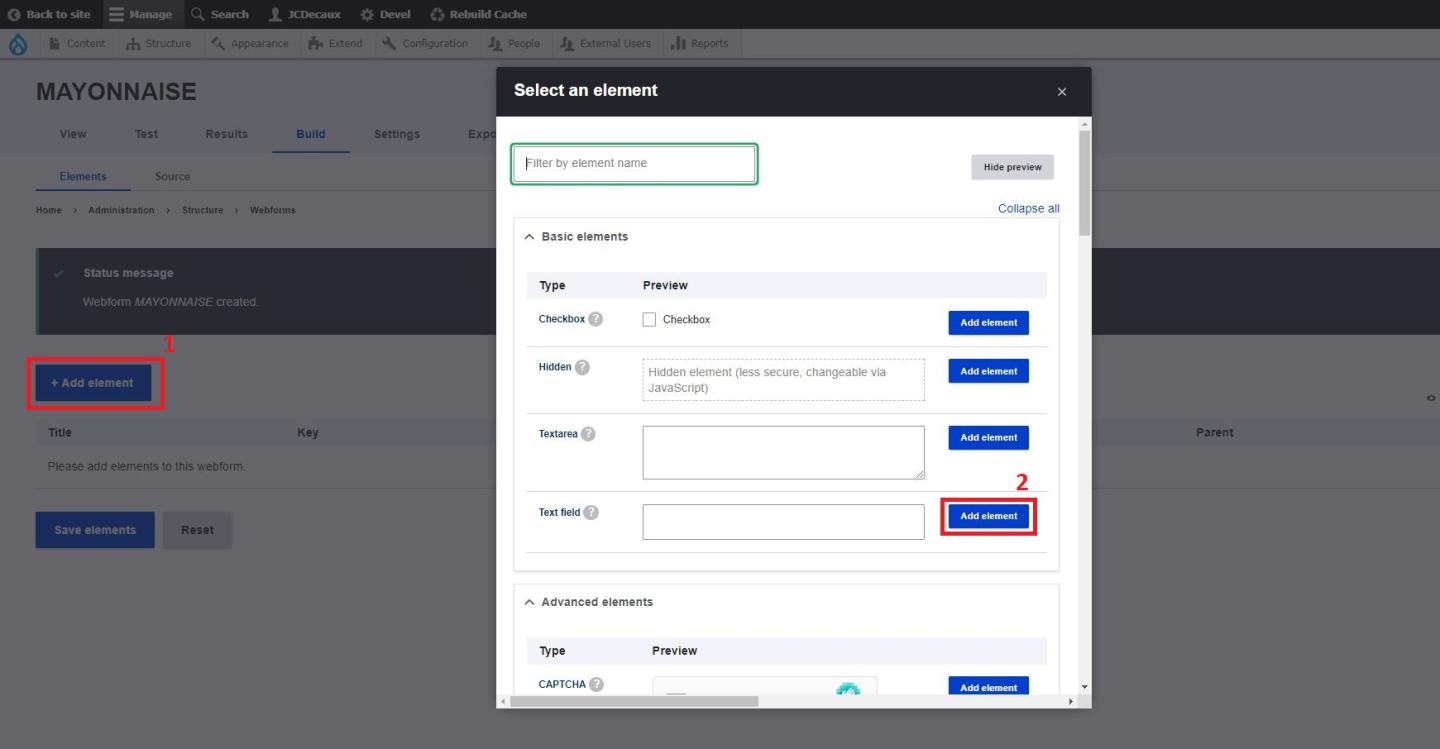
  • For example, you can add  "Text field" so that the person can include his or her last name or "Email" to get their contact information
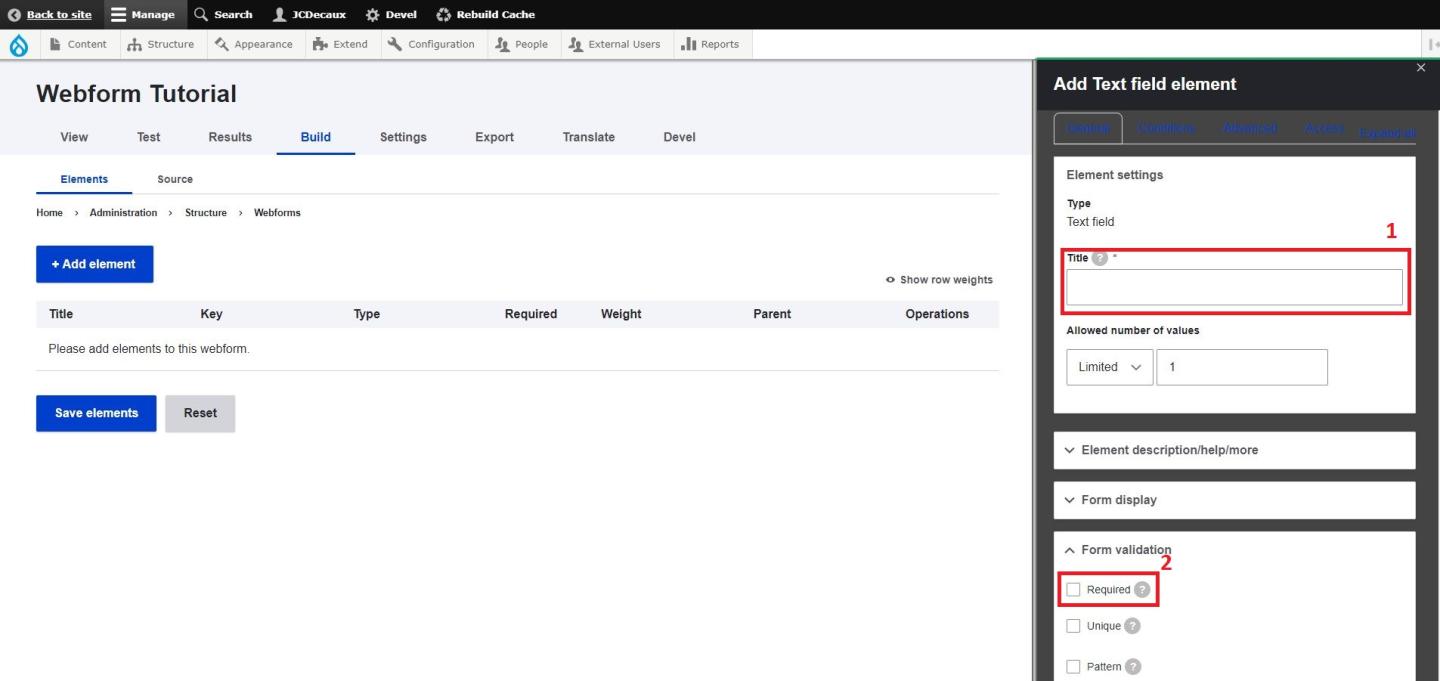
  • Add that information in "Title"


  • Once your webform is created, it should automatically redirect you in the "Build" section of your webform. If not, click on  "Build".
  • Once all of the relevant fields have been added, you also have the ability of making some fields "required" meaning that if ticked, the user needs to fill the field outin order for the form to be submitted.
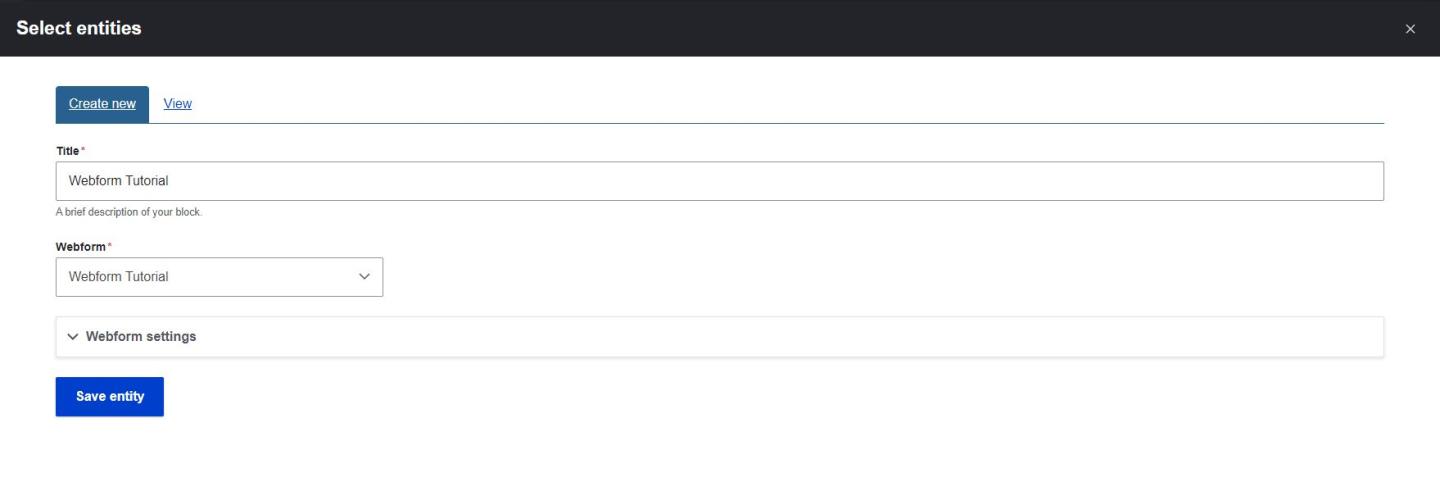
  • Last step, to put your webform in your pages, you have to: 
  1. Edit your page
  2. Create a new custom block
  3. Select "Form embed"
  4. Add in it your webform
  5. Save


Congrats!

End result

Title
* Indicates required field
The data collected through this form are processed by JCDecaux SE. They allow our teams to contact you to answer your message. For more information about the processing of your personal data carried-out by JCDecaux SE and your rights, please read our Privacy Policy.