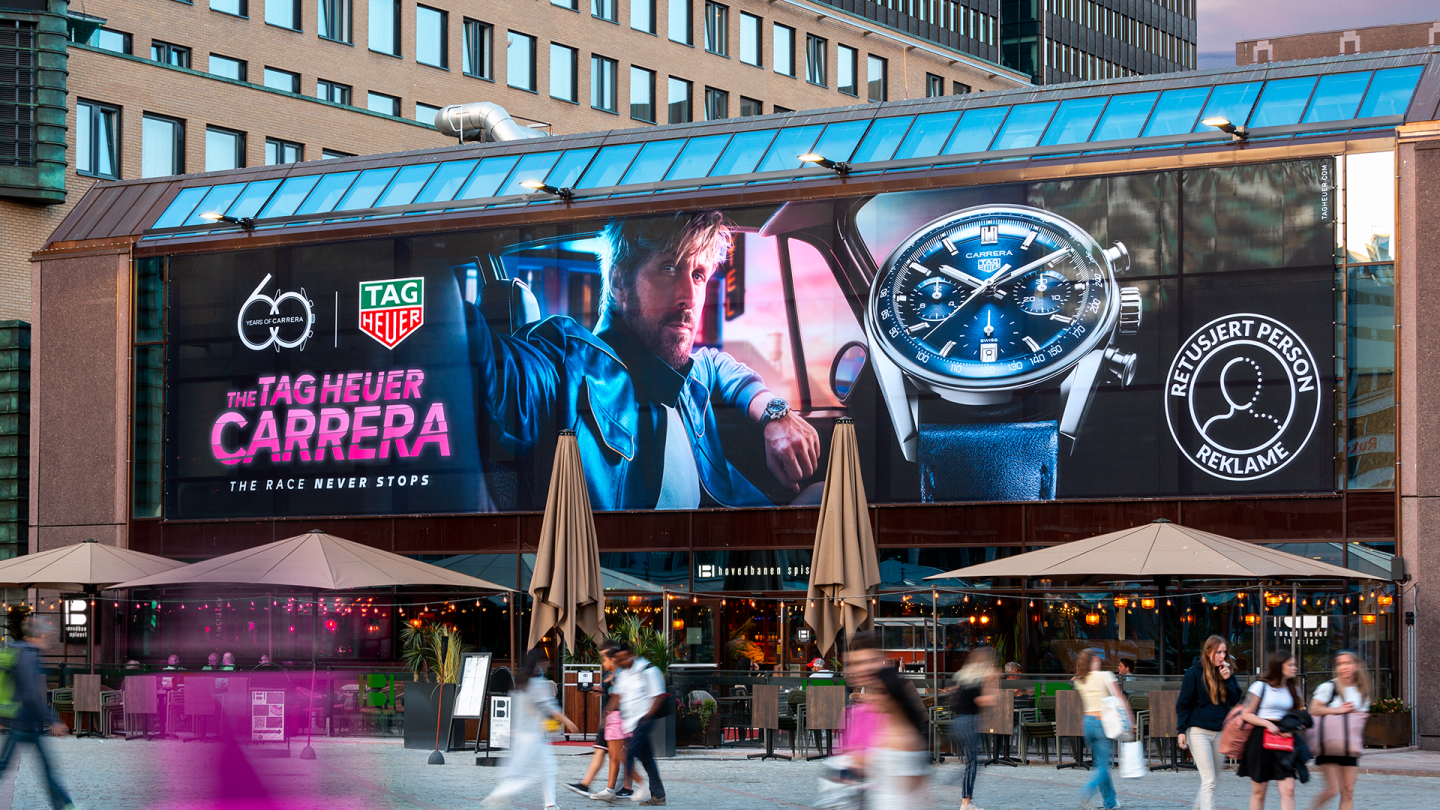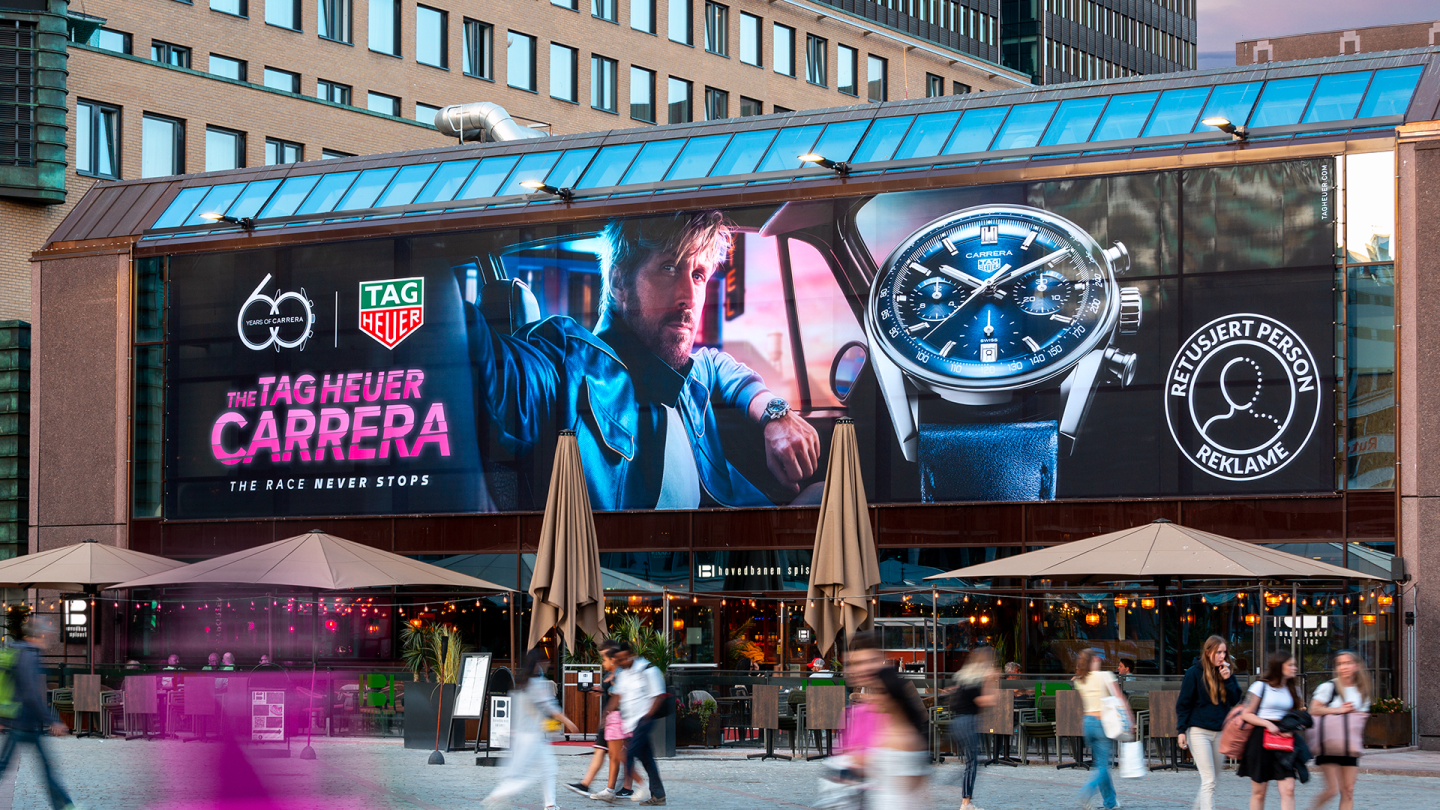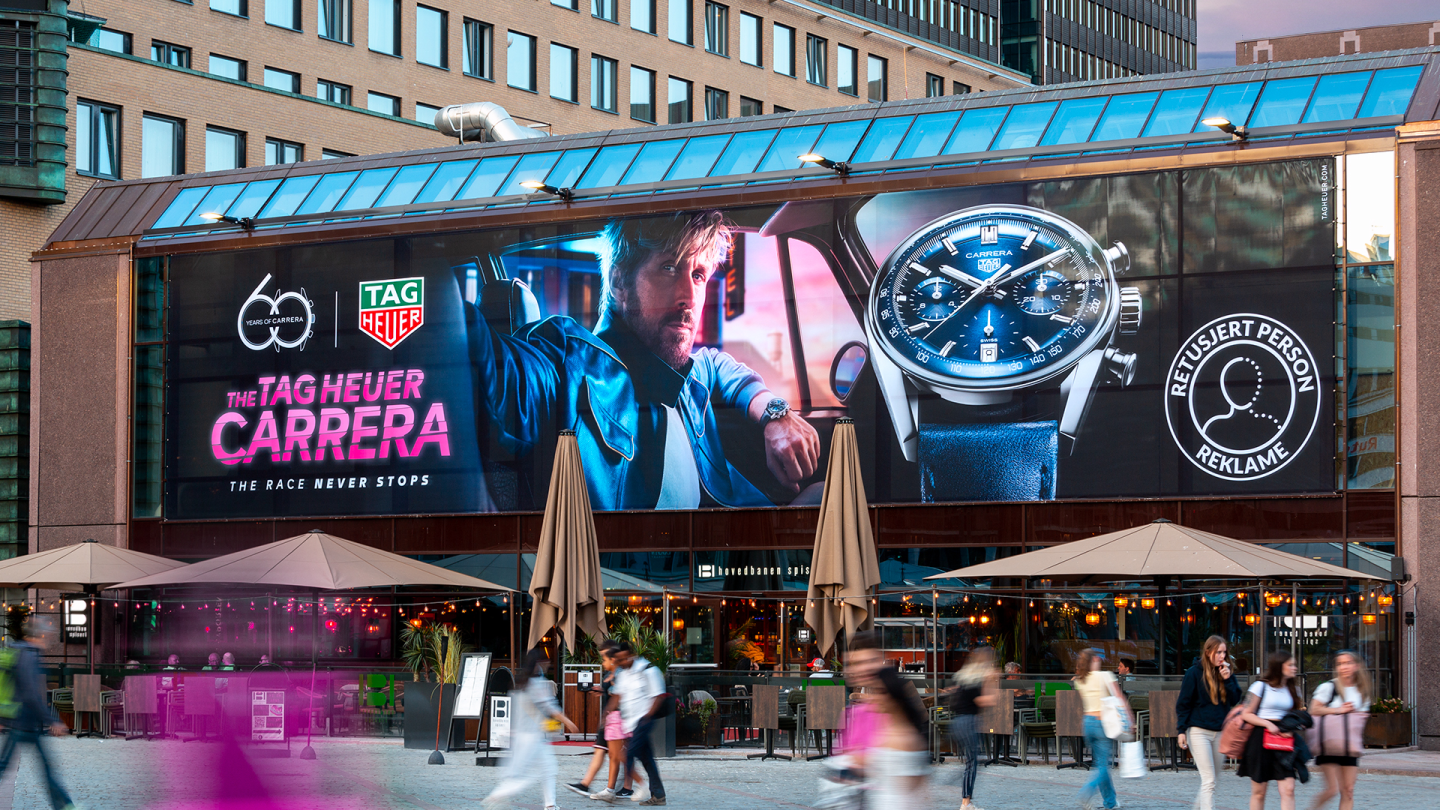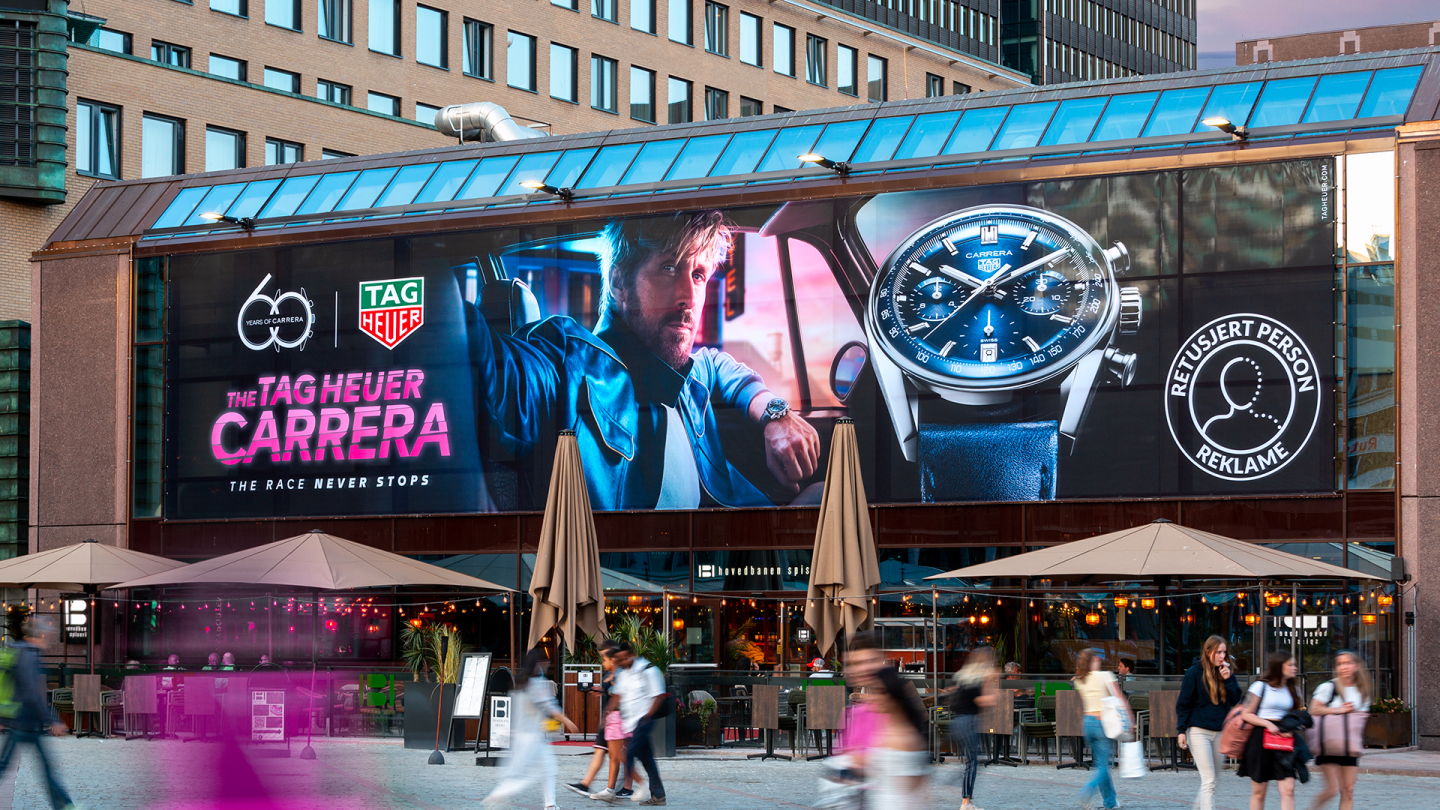
How to create a picture ?
Structure > Block Layout > Add a custom Block > Picture
Within the custom block, you can choose the size of your image to suit your requirements within the Layout :
- Default (100% of the picture size, within the column)
- Small (50% of the picture size, within the column)
- 100% (100% of the column)
- Wide (Wider than the column)
It is also possible to add a caption to the picture.
You have two kind of presentation for your pictures:
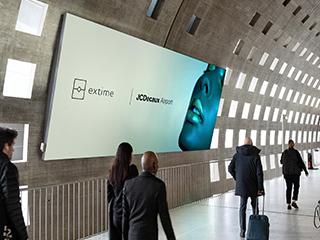
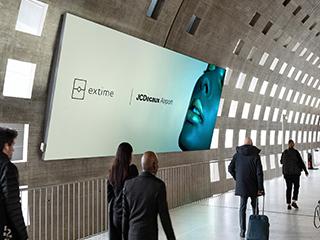
- Just add a picture: it will be aligned with the text. It can have a caption.
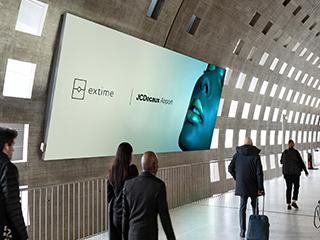
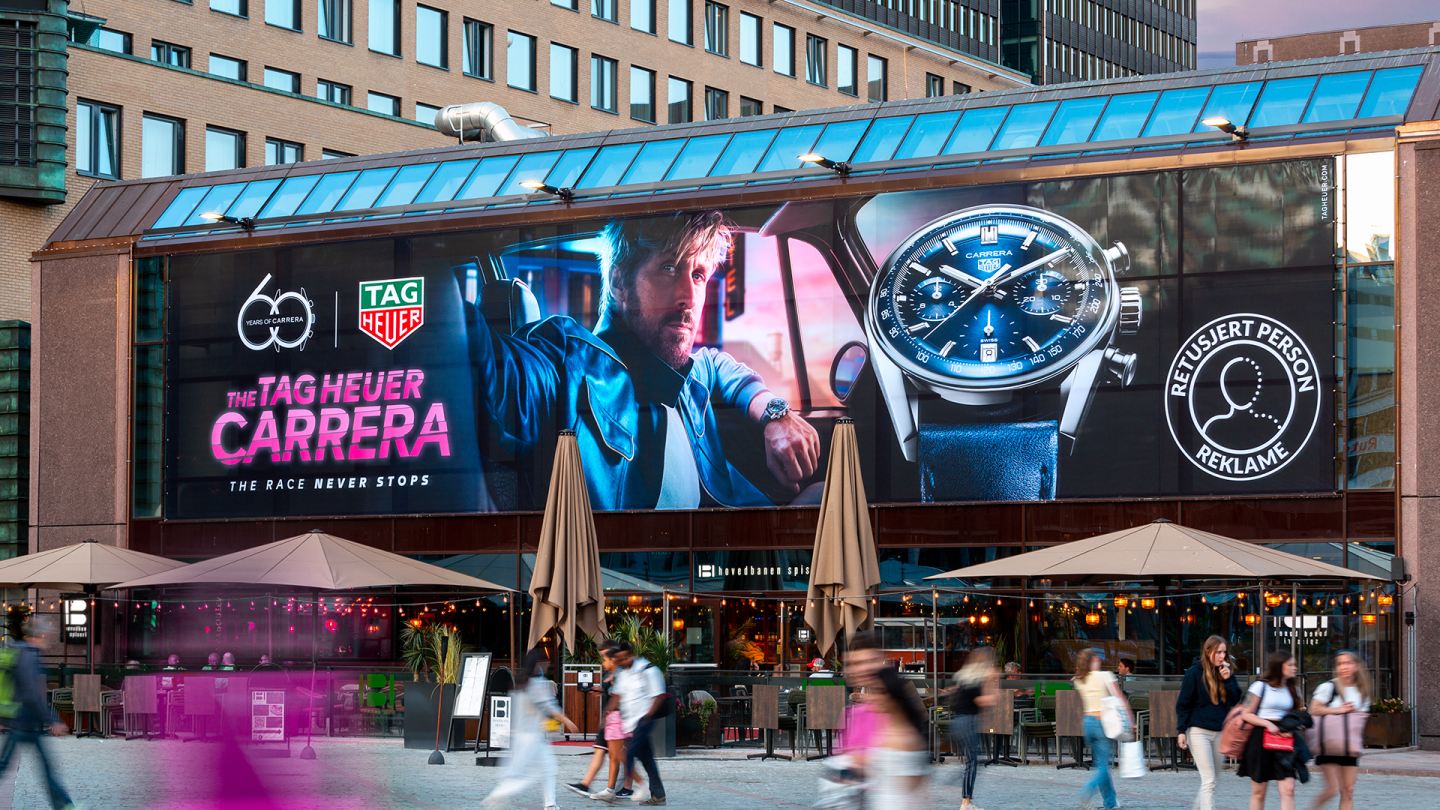
- Add a picture and click "Wide": which means the picture will be larger than the text area. On laptops, tablets and mobiles, wide take all the length of the screen. Wide works best with panoramic pictures. Drupal does not crop; you will have to do it before uploading. It can have a caption.
The option "Alternative Text" has been added. It lets you add keywords such as "JCDecaux Paris Mupi Summer". It also helps search engine understand the image content, and can appear on a web page when the image fails to load.
With the option "URL", you can add a URL within a Custom Block Picture. The link can be both internal and external. It can be clickable within a staggered gallery, a scroll gallery and a slider.
"Caption" lets you add a caption under a photo, to describe a place, situation or source, for example.