Three menus on Drupal
You have 3 types of menu on Drupal.
- The main menu is divided in two sides/parts.:
a) The Left side : Titles are always in capitals.
b) The Right Side : Titles are lower case. - The TOP MENU

You have 3 types of menu on Drupal.

3. The FOOTER, which is also considered as a menu.

To edit any of your menu, go to Structure > Menus.
All the menus follow the same rules so you just have to know in which one you want to add a link.
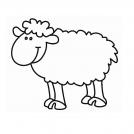
Add the link of the page which corresponds to this menu. You have several options:
- Start typing the title of a your page to select it.
- Add an external link, such as https://www.jcdecaux.com. If you want to add a page of your website by using the URL, make sure you are using the public URL, not the one connected to the back office.
- Write the node* of your page.
If you are in the main menu, there is one more step to do: select the Parent Link of your menu, if you want it in the left menu (in capital letters) or in the right menu.
Don't forget to save!
Every content you create on Drupal has a node, meaning it's an item. Any of these items has a number.
To find it: go to your content > find your page > edit your page > in the URL, you will see node/xx. Keep in mind this number, and write it in the path of your menu.
Using the node and not the URL to add an internal link is better to guarantee that your link won't be broken (in case you change your title for example)
Stay in Structure > Menus > Edit the menu you want (main, top or footer) for the following tools.
By default, Drupal adds your menus in alphabetical order.
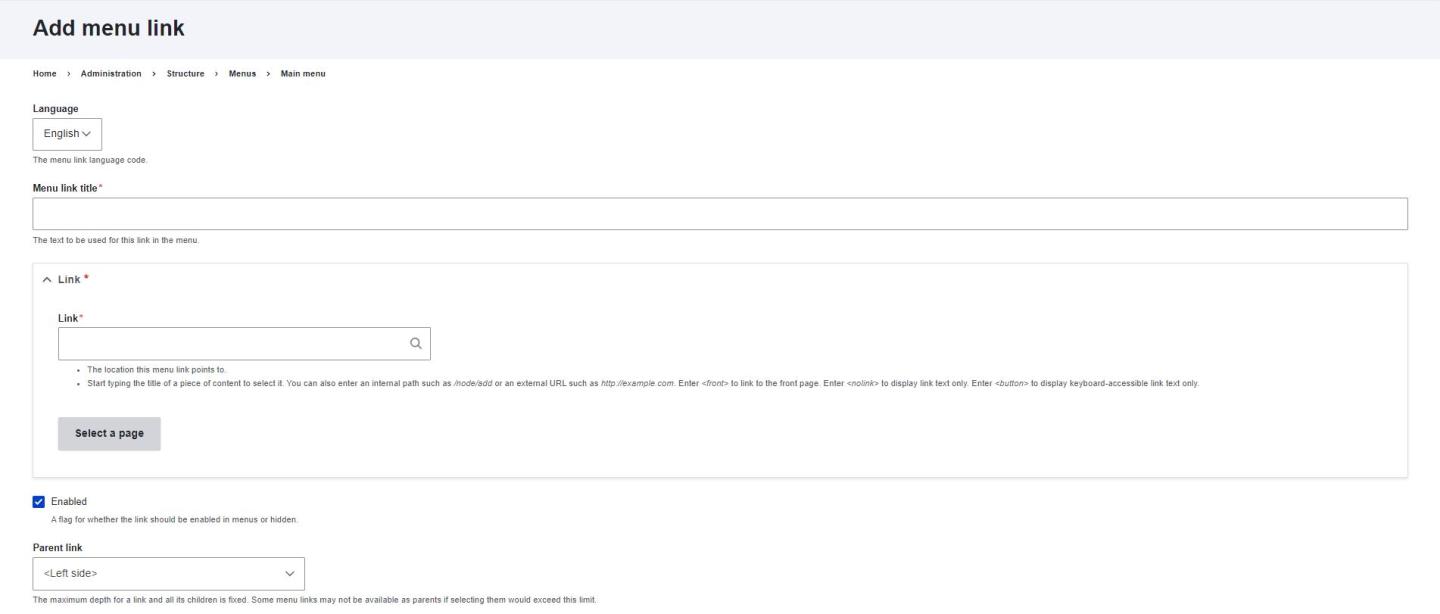
If you want to change the order, you can drag and drop your links up and down.
Don't forget to click on Save after your changes.
Inside a section, you can have several level of menus.
To change the level, use the drap and drop: push to the right the menus you want to see as sub menu.
You can have from one to three levels of menus. If you add more levels, your menu will not be displayed in the front part of your website.
The level 2 has a particularity: you can choose if you want it to be clickable or only displayed (not clickable).
To make it clickable: edit your level 2 menu > tick "Clickable level 2".
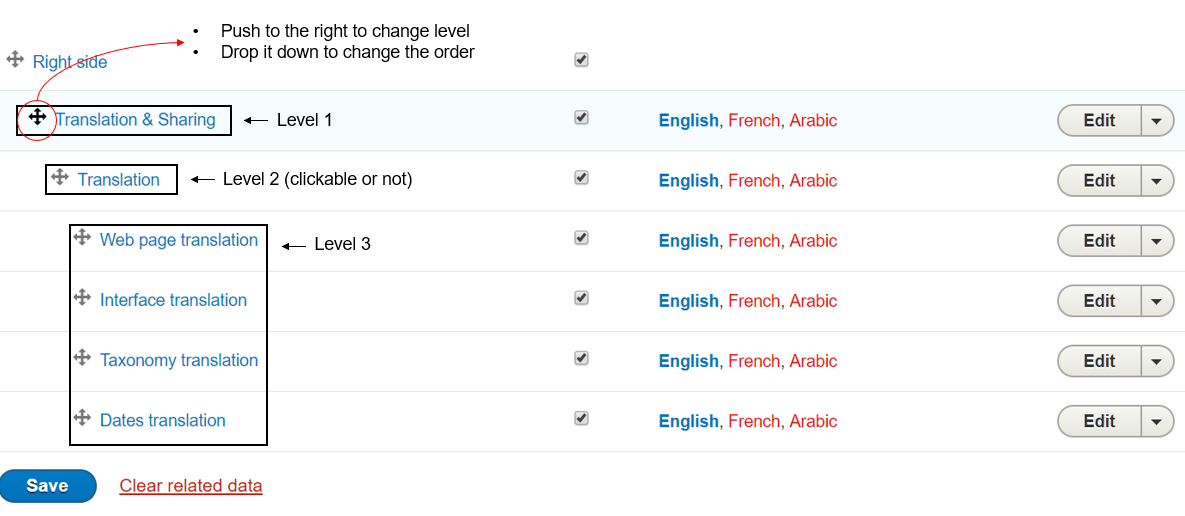
If your website is in two languages (or more), you will have all your menus in both languages on the same page in your back office.
In Structure > Menus, within your Main, Top or Footer menu, you have two options:
Be careful! You have to translate your menus to have a bilingual website, do not create two different menus, one for each language, but TRANSLATE the original one.